

JoeNotes The 20-second version
- Stops and Local Resources are now one library: Places. Everything you built carried over automatically.
- One rebuilt editor with four sections: Basics, Story, Details, and Extras.
- Mixed media, including photos, video, and audio on the highlight callout.
- Practical details per place: price tier, hours, tags, allergens, and a restroom toggle.
- Local recommendations look the part: categories scroll sideways as image cards, with logo and monogram fallbacks, and detail views led by a hero image.
- Set your password right in Settings, no reset email needed.
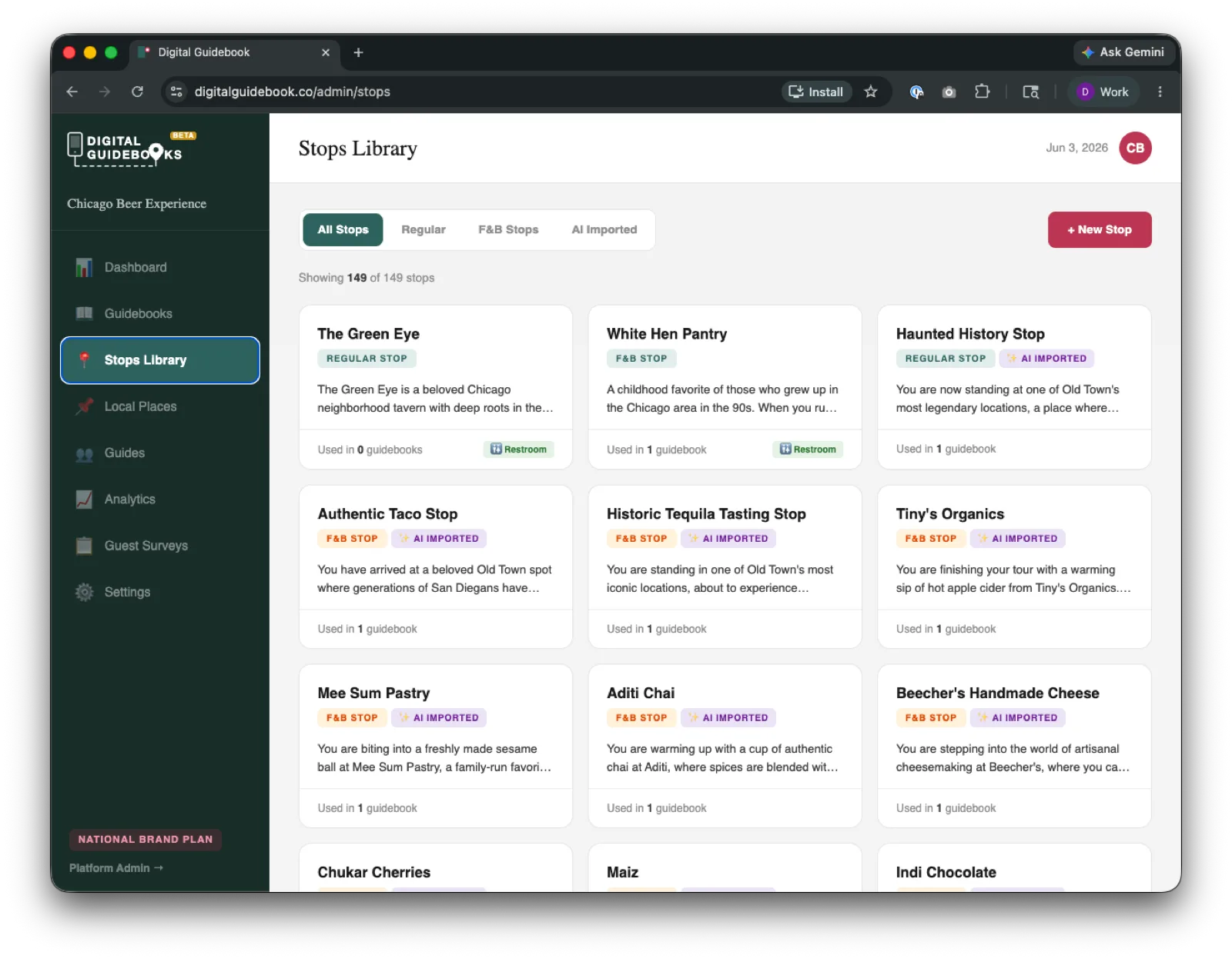
For most of this product's life, the places you put in a guidebook lived in two separate buckets. Stops on your tour went in one library. The local spots you recommend to guests for their own time, the coffee place, the bar, the bookstore, went in another. Two libraries, two editors, two slightly different sets of rules. If a stop on your tour was also a place you would happily send someone on their day off, you entered it twice.
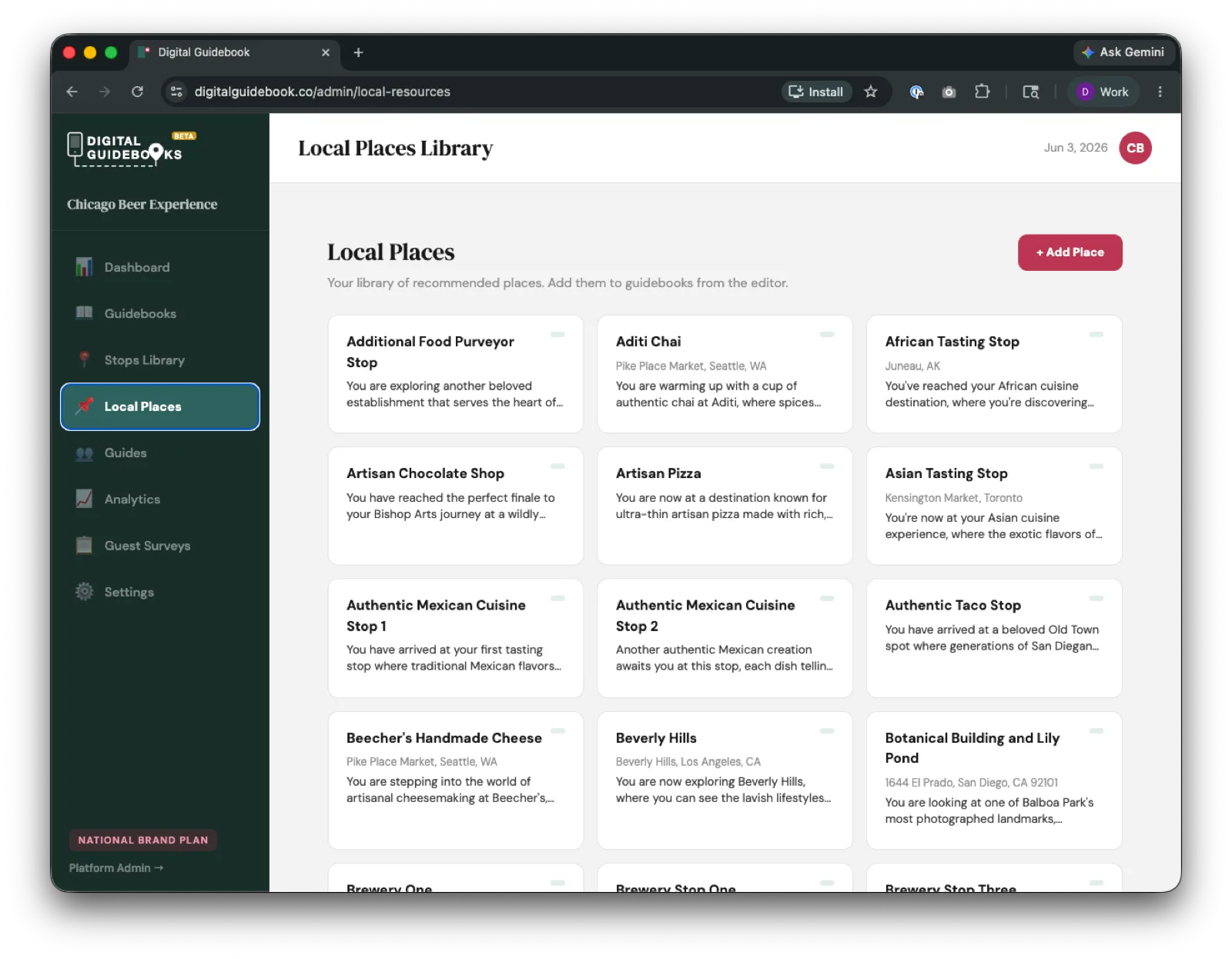
This release collapses that split. Stops and Local Resources are now one concept, called Places, with one library and one editor behind them. Everything you had already built moved over on its own, with photos, descriptions, links, and details intact. There was nothing to re-enter.
A quick word on where this came from. The local-recommendations work was inspired by Analise and Shannon at Key West Food Tours, who had already been handing guests a thoughtful homemade guidebook of their own. They were in good company with Chris Andrews at Bienville Bites, who had been building his guidebook by hand in Canva. When operators go to that much trouble to build a guidebook from scratch, they are telling you exactly what the product should become.
Local Recommendations That Look the Part
The biggest visible change for your guests is the local recommendations page. It used to be a long vertical list of mostly text. Now each category scrolls sideways as a row of image cards, the way people expect to browse on a phone.
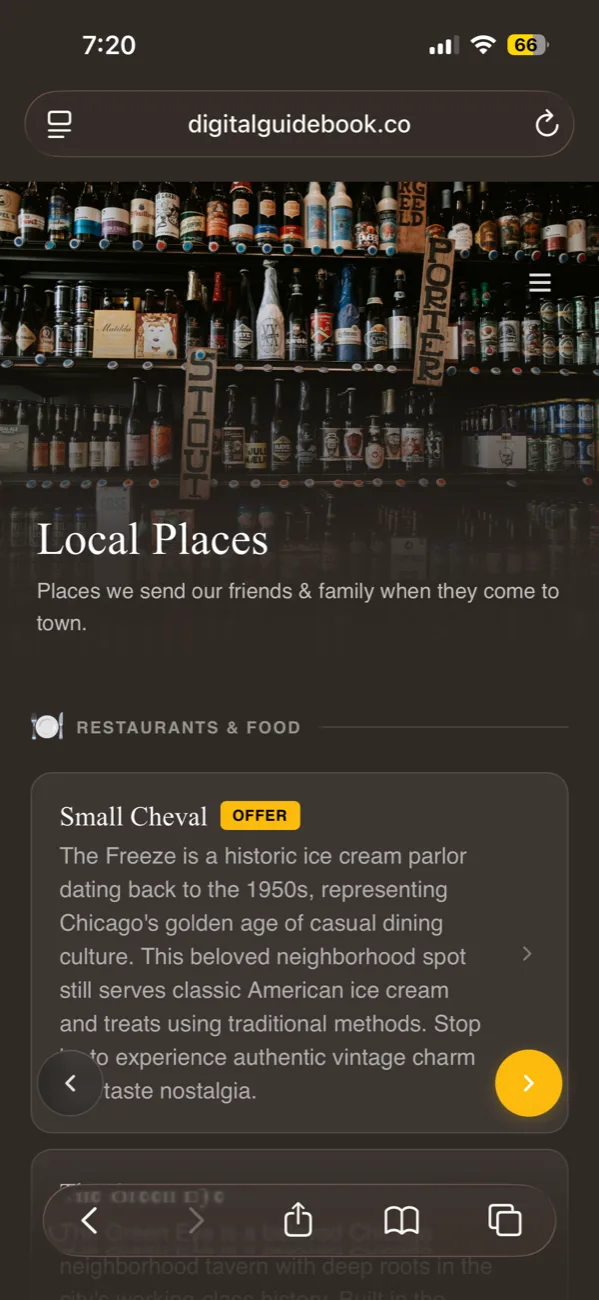
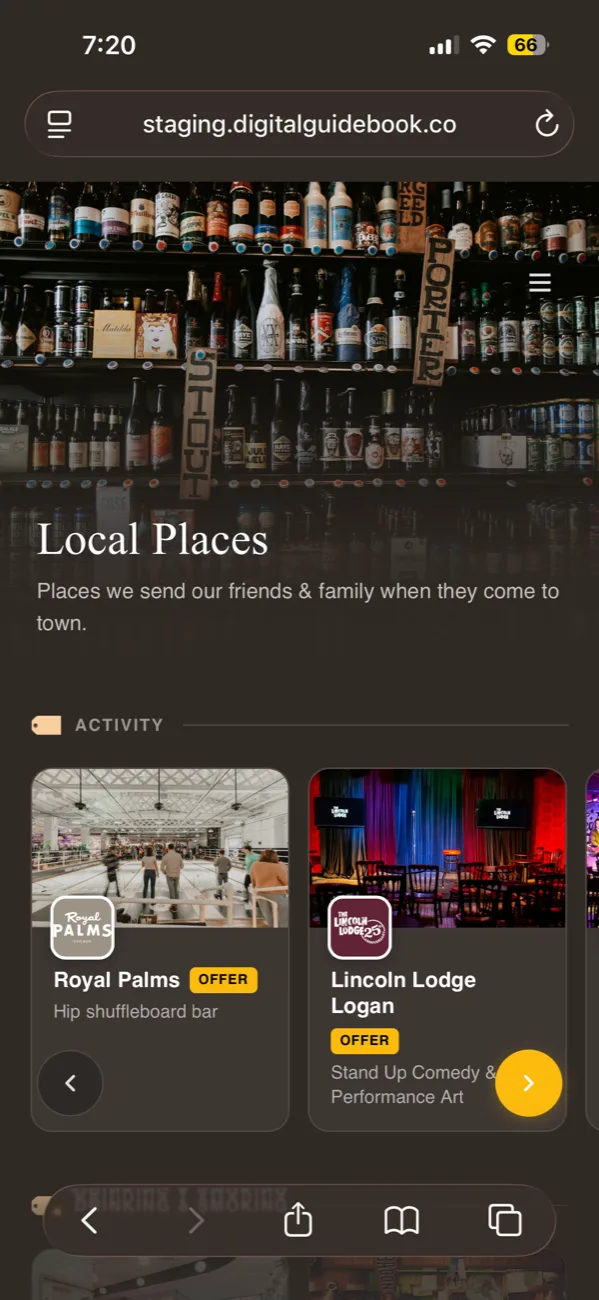
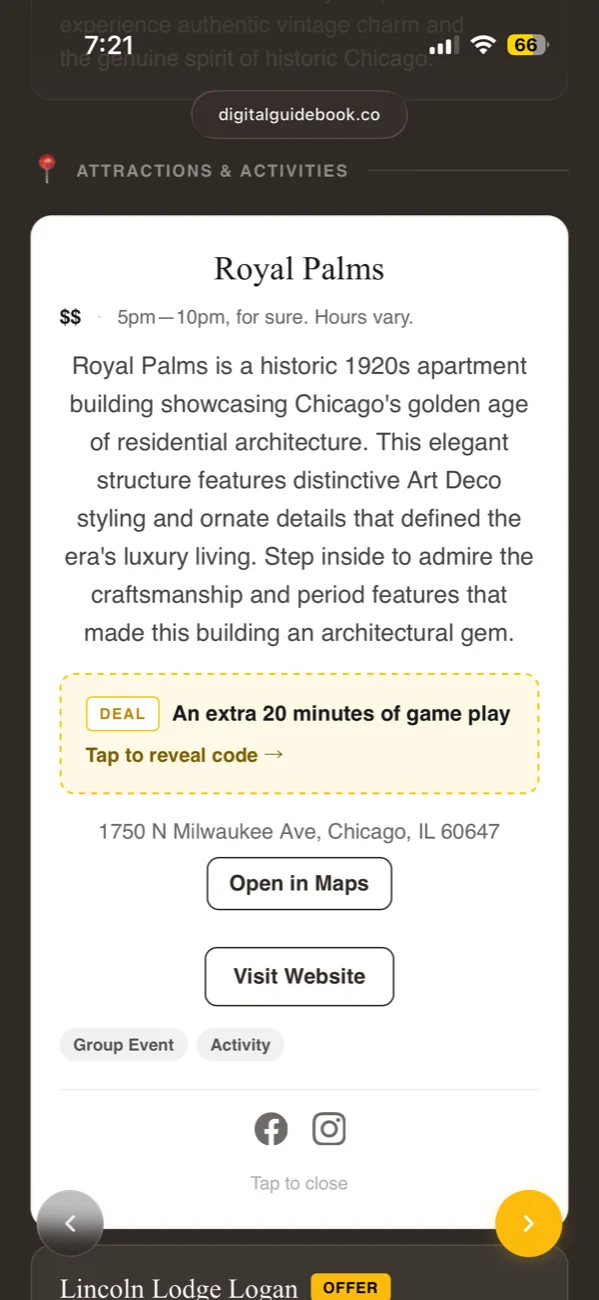
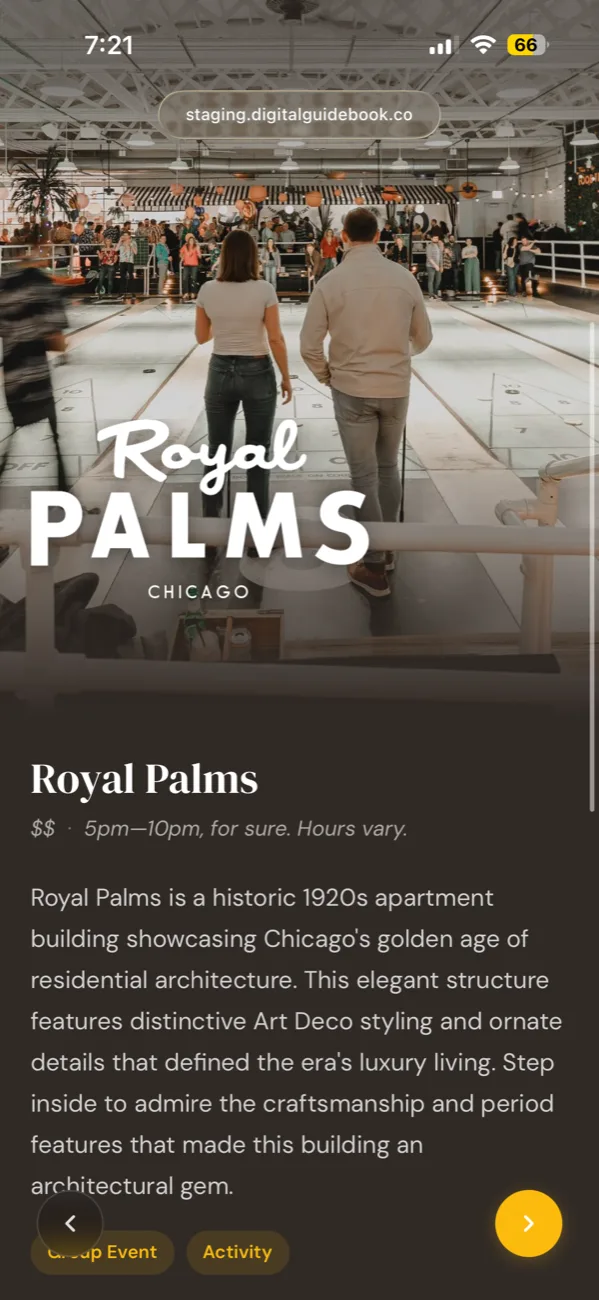
Image cards are only as good as the images behind them, so the cards fall back gracefully. If a place has no photo, the card uses the place's logo. If there is no logo either, it draws a clean monogram from the place name on a tinted background. The page always looks finished, even before you have uploaded a single photo. Opening a recommendation now leads with a hero image.
Two Libraries Became One
You used to switch between a Stops Library and a separate Local Places list, each with its own page and its own way of doing things. Now there is a single Places library. Every place you have ever added lives in one grid, and you filter it by what you need: all places, just the active stops on a tour, or just your local recommendations. You can also filter by guidebook or by tag.
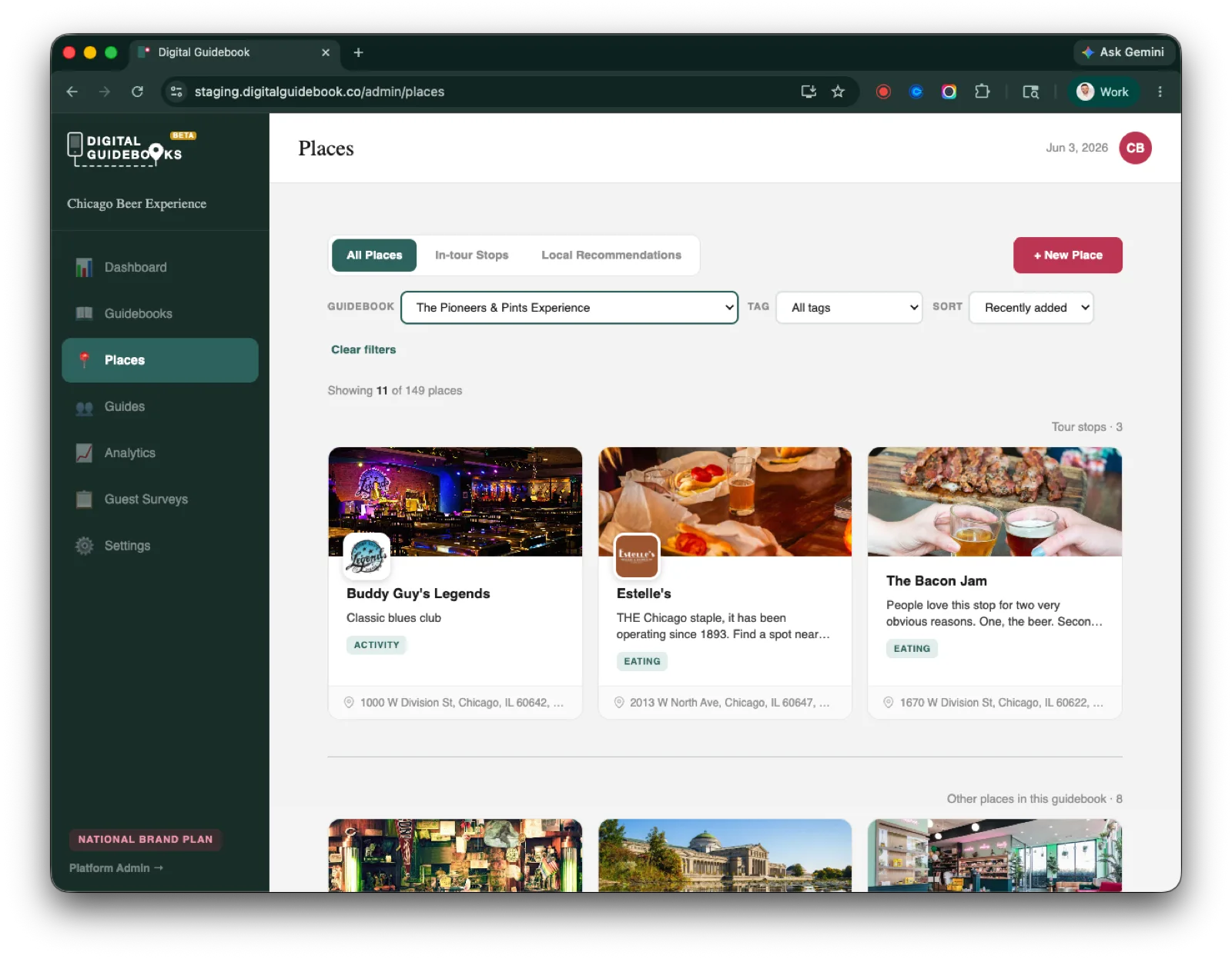
The filtering came straight from Mike Huberty at American Ghost Walks, who is pushing guidebooks to their limit with locations across North America. When you are running that many places across that many cities, finding the right one quickly is the whole game.
A Rebuilt Place Editor
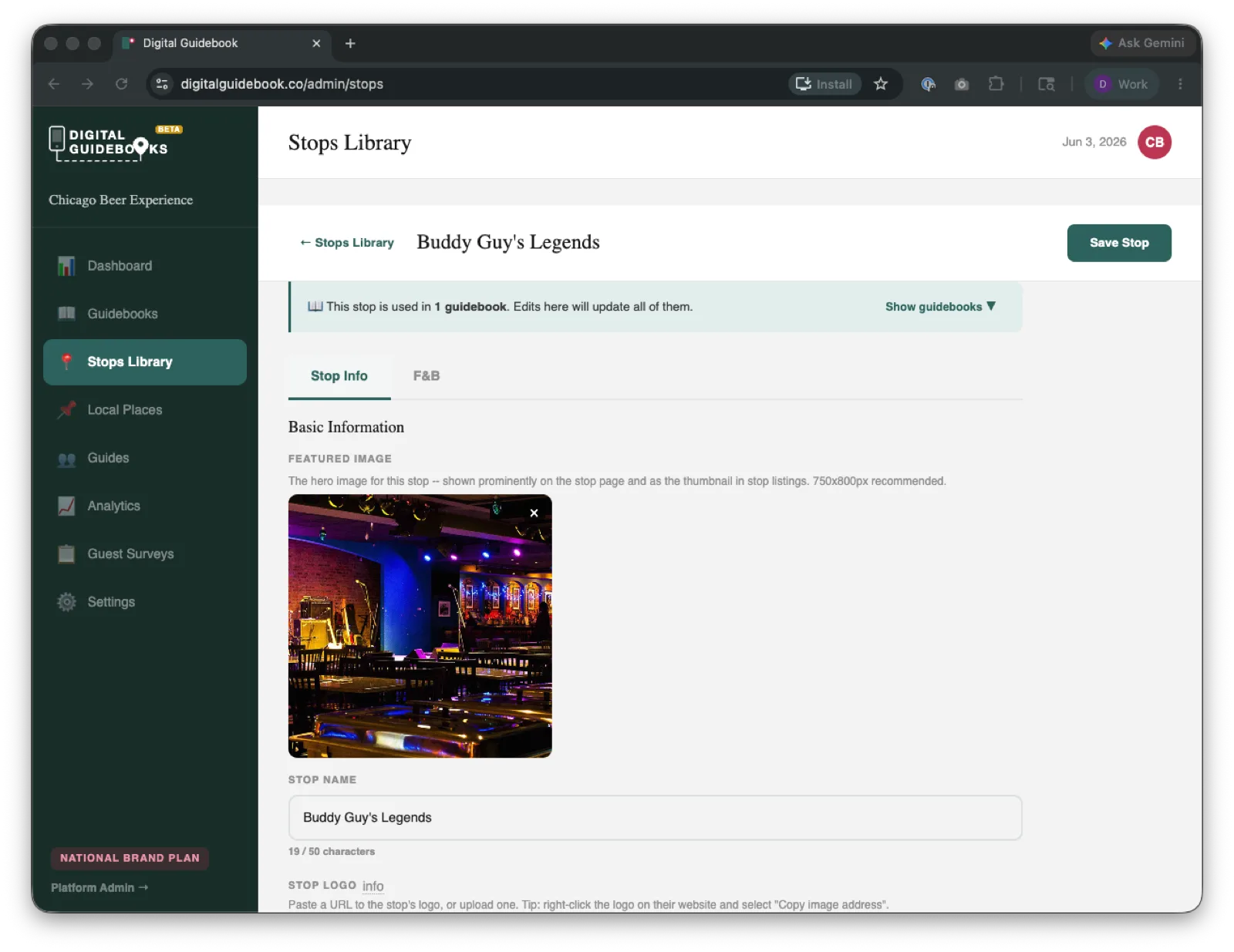
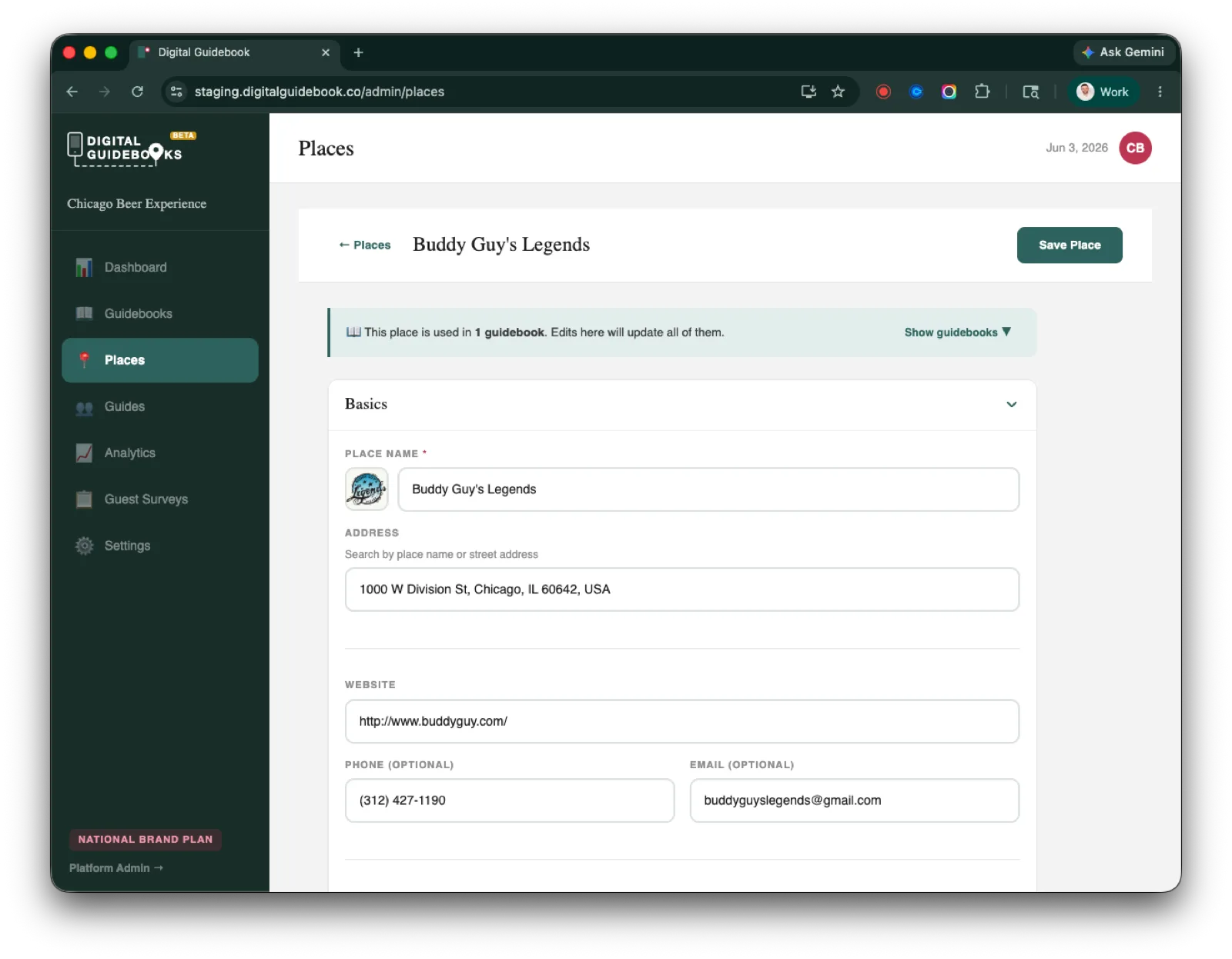
The old editor was a long scroll of fields with a couple of tabs bolted on. The new one is organized into four clear sections you can open and close as you work: Basics, Story, Details, and Extras. Basics is the practical identity of the place, its name, address, website, phone, and email. Story is where the place comes to life. Details and Extras hold everything else, from price and tags to the optional pieces you turn on per place.
Mixed Media: Photos, Video, and Audio
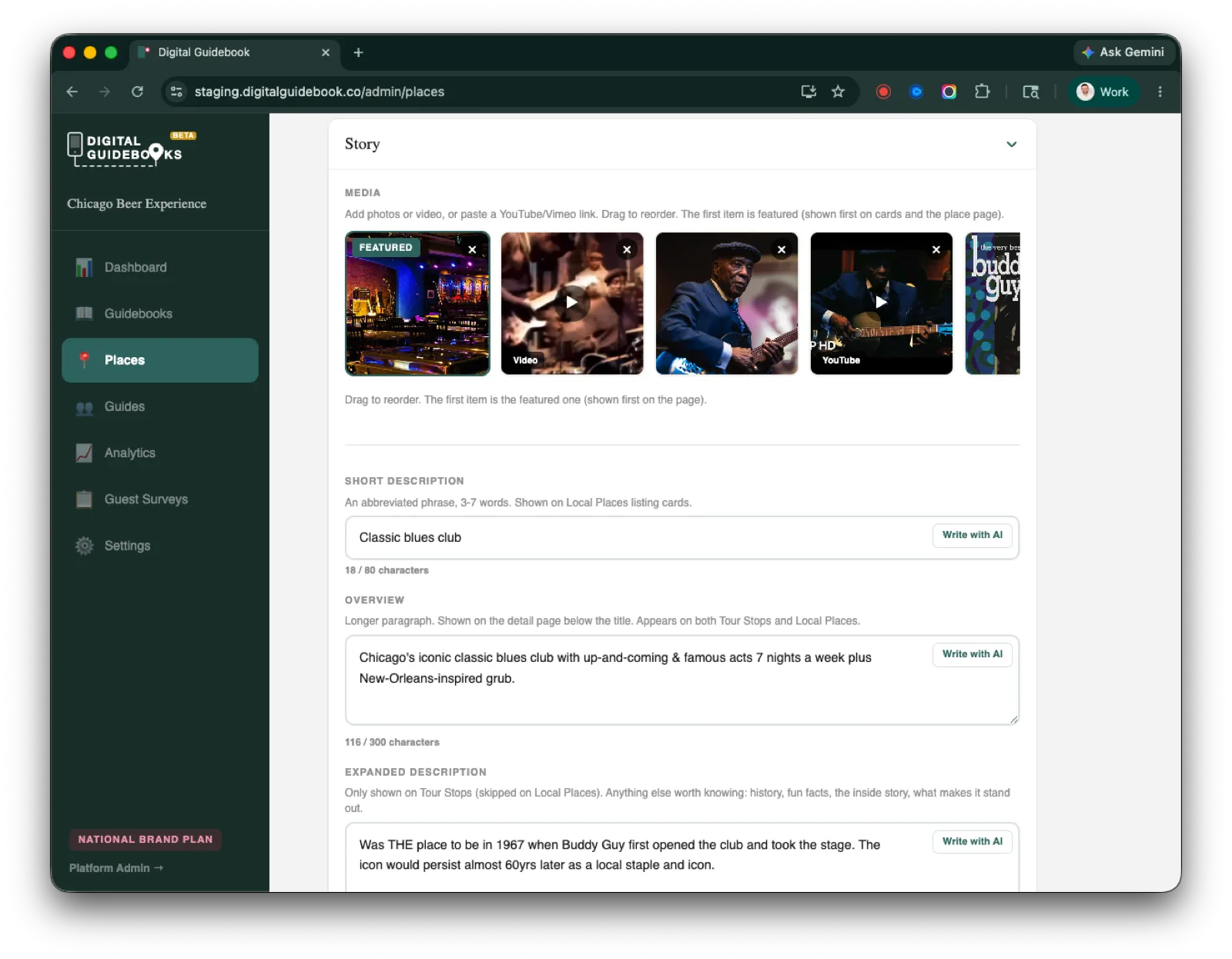
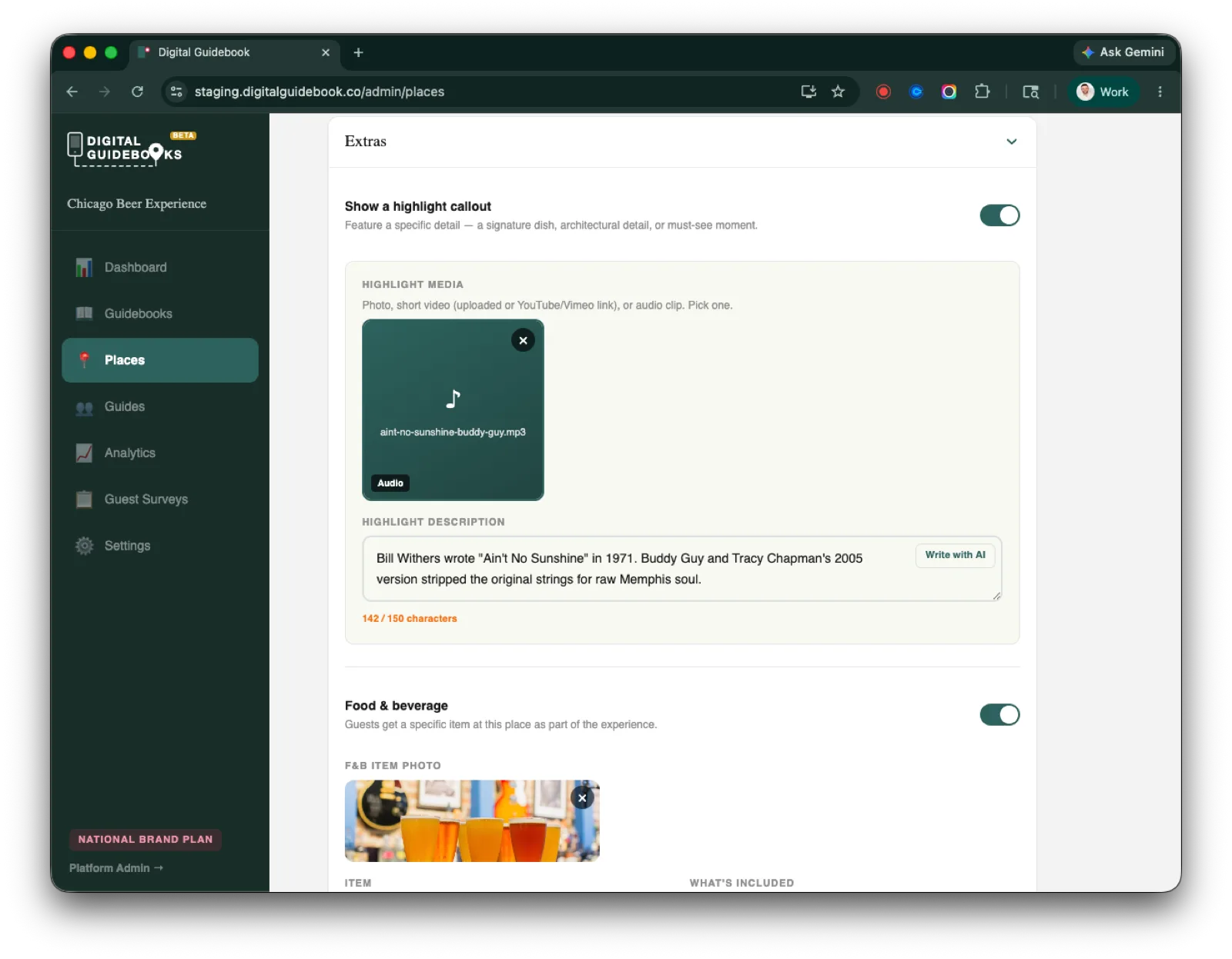
Every place now holds a real gallery. Drag photos and video into the order you want, and the first item becomes the cover. Beyond the gallery, the highlight callout, the one detail you most want a guest to notice, can carry a photo, a short video (uploaded or pasted in as a YouTube or Vimeo link), or an audio clip. Audio is the one people did not expect and immediately understood: a few seconds of the song a venue is known for, a guide's voice telling the story behind a spot, the sound of the place itself.
The Details Guests Actually Use
Most of what a guest wants to know about a place is practical. Is it cheap or fancy? Are they open now? Is there anything I cannot eat? Those answers used to be buried in description text or missing entirely. Now they have proper fields:
- Price tier. One, two, or three dollar signs, shown in a clean meta row above the description.
- Hours. A free-form field, so you can write "Open daily 9am to 6pm" or describe seasonal and weekend-only hours without fighting a calendar widget.
- Tags. Free-form labels like vegetarian-friendly, dog-friendly, or romantic, shown as chips guests can scan. Tags autosuggest from the ones you have already used, so your labels stay consistent.
- Food and beverage item. For tasting stops, name the item, describe what is included, and list allergen information as chips. Allergens autosuggest from your past entries too.
- Restroom. A simple toggle that adds the place to the restroom locations on a tour's overview page.
These pieces live in the Details and Extras sections, and each optional piece is a toggle. Turn one off and the data is kept, just hidden from guests, so you can switch it back on later without losing anything.
Smaller Wins in This Release
A handful of smaller improvements landed alongside Places:
- Set a password right in Settings. You can now set or change your account password directly under Settings, then Security. It takes effect immediately, with no reset email to wait on. A thank you to Debra Smith of Taste of Thomasville for spotting the bug that led to this fix.
- Adding a place starts the full profile. The "Add New Place" button in the guidebook editor now opens the complete place profile, rather than a stripped-down inline form.
- Cleaner logo uploads. When you upload a place logo, it shows as a tidy "image attached" pill with a thumbnail and a remove option, instead of exposing a raw file path.
- One place for outbound links. Review links and utility links (menu, reservations, directions) are managed together in a single list, in the order you choose.
Frequently Asked Questions
What changed in the Places release?
Stops and Local Resources, which used to be two separate libraries, are now a single library called Places. There is one editor for every place you recommend, whether it is a stop on your tour or a local spot you send guests to on their own. The editor is organized into four sections (Basics, Story, Details, and Extras), supports photos, video, and audio, and the tourist-facing local recommendations now scroll horizontally with real card images.
Do I have to move my existing stops and recommendations over by hand?
No. Everything you already built carried over automatically. Your stops and your local recommendations now appear together in the Places library, with all of their existing photos, descriptions, links, and details intact. There is nothing to re-enter.
Can a place have audio, not just photos and video?
Yes. Each place supports a mixed gallery of photos and video, and the highlight callout can hold a photo, a short video (uploaded or a YouTube or Vimeo link), or an audio clip. Audio is useful for a song, a guide voice note, or a short story tied to the place.
Can I show price, hours, and tags for each place?
Yes. Every place has a price tier (one, two, or three dollar signs), a free-form hours field, and free-form tags. Price and hours appear in a clean meta row above the description on the tourist page, and tags appear as chips guests can scan. You can also list allergen information on a food and beverage item and mark a place as a restroom location.
What do the local recommendation pages look like now for guests?
Local recommendations are grouped by category, and each category scrolls sideways as a row of image cards instead of a long vertical list. Cards without a photo fall back to the place logo, or to a clean monogram of the place name, so the page always looks finished. Opening a recommendation shows a full detail view led by a hero image.
Can I set or change my account password now?
Yes. You can set or change your password directly in Settings under Security. It takes effect immediately, with no reset email round-trip required.